http://Apple Router Login in the address bar. Use default credentials (usually admin/admin or admin/password) to access the admin panel. Change your password immediately for security. Apple Router Login Tool: Access & Configure Your Network Easily
Our free Apple Router Login guide provides instant, secure access to your router's admin interface. No technical skills needed. Quickly troubleshoot issues, manage connected devices, set up parental controls, and enhance your network security in minutes.
What is Apple Router Login
Apple Router Login refers to the process of accessing your Apple router's administrative console. Unlike traditional routers that use a web interface, Apple's AirPort base stations are managed exclusively through the AirPort Utility app. While the underlying principle remains the same—using a private IP address, typically your router’s default gateway (like 10.0.1.1), to access management tools—the execution is app-based. This router admin access allows you to change your Wi-Fi password, update the network name (SSID), and secure your home network.
How to Login to Apple Router Login
To access your Apple Router settings, you must use the AirPort Utility app, as Apple AirPort base stations do not support a standard web browser interface. Follow these steps to log in:
-
Download and Install AirPort Utility:
- For Mac: Download from the Apple Support site or find it in
/Applications/Utilities/. - For iPhone/iPad: Download the AirPort Utility app from the App Store.
- For Windows: Download the legacy version from Apple's support website.
- For Mac: Download from the Apple Support site or find it in
-
Open the App: Launch AirPort Utility.
- On iOS, you may need to enable "Wi-Fi Scanner" in Settings > AirPort Utility to see your base station.
-
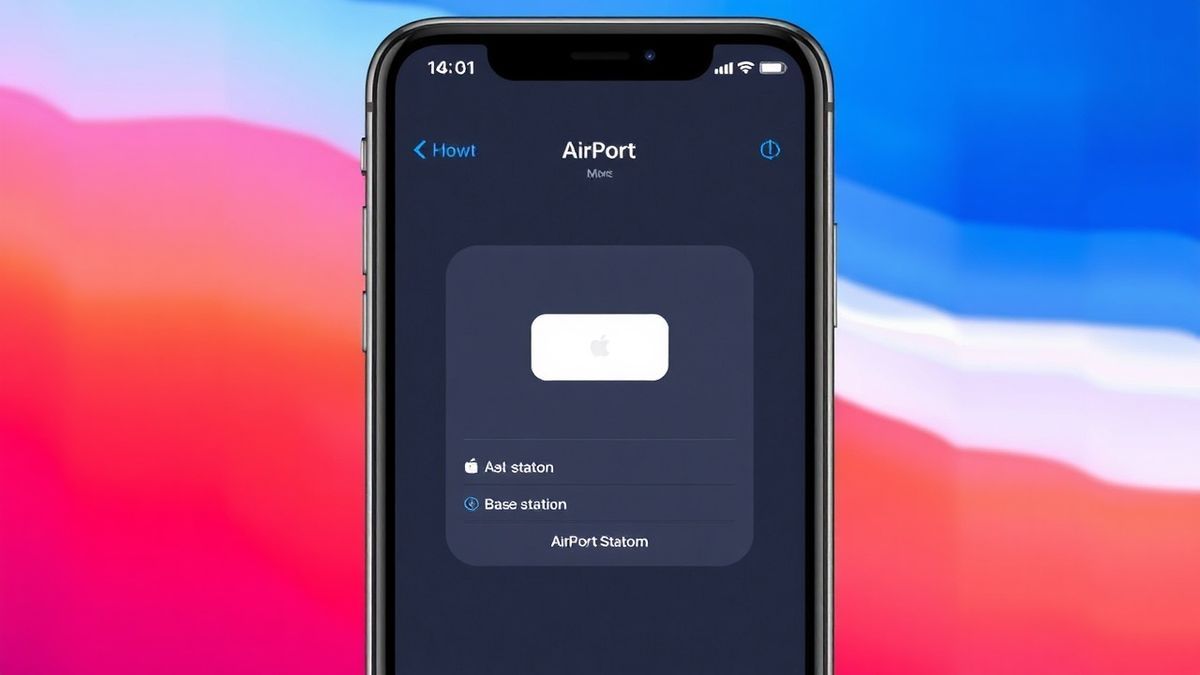
Select Your Base Station: The app will scan your network and display a graphic of your AirPort base station (e.g., AirPort Extreme, Express, or Time Capsule). Click or tap on it.
-
Enter the Password (if prompted): If the base station is password-protected, enter the device password. If you haven't set one, the default is usually blank.
-
Access the Admin Panel: Click Edit to enter the configuration panel where you can modify router settings.
Default Username and Password
Unlike most routers, Apple AirPort base stations do not use a "username/password" combo in the traditional sense. Instead, they rely on the base station's device password.
- Default Password: The default password is usually blank (empty) or set to the base station's serial number.
- Common Combinations: If you are locked out, try leaving the password field empty.
- Security Risk: If you are still using a blank or default password, your network is vulnerable.
- Recommendation: After your first login, go to the Base Station tab in AirPort Utility and set a strong device password to prevent unauthorized changes to your router settings.
What You Can Do After Login
Once you have accessed the admin panel via AirPort Utility, you can fully control your home network:
- Change Wi-Fi Password and Network Name: Navigate to the Wireless tab to update your SSID and Wi-Fi password. This is the first step in securing your network.
- View Connected Devices: Check the Network or Clients tab to see which devices are currently connected to your Wi-Fi. This helps identify unauthorized users.
- Set Up Guest Network: Create a separate Wi-Fi network for visitors to keep your main network secure.
- Adjust Router Settings: Configure advanced options like DHCP reservations (static IPs), port forwarding for gaming, and IPv6 settings.
- Manage Parental Controls: Set time limits and content filters for specific devices to manage internet access for kids.

Troubleshooting Apple Router Login Not Working
Encountering issues while trying to access your router settings is common. Here is how to resolve the most frequent problems.
Cannot access Apple Router Login
Cause: You are trying to use a web browser (like Chrome or Safari) with an IP address (e.g., 10.0.1.1 or 192.168.1.1). Apple AirPort routers do not have a web interface.
Solution: Uninstall any third-party "router login" tools. You must use the AirPort Utility app on your Mac, iOS, or Windows device. If you cannot find it, re-download it from the official Apple support site or App Store.
Page not loading or No response after entering IP
Cause: This is a continuation of the above. The router is not responding to HTTP requests because it is configured for app-only management. Alternatively, you might be connected to a different network (e.g., a neighbor's Wi-Fi or a VPN).
Solution:
- Ensure you are connected to your Apple AirPort base station's Wi-Fi network.
- Disable any active VPN connections that might block local network discovery.
- Use the AirPort Utility app instead of a browser.
Login failed (Device Password Error)
Cause: You have forgotten the base station's device password, which is separate from your Wi-Fi password.
Solution: You will need to factory reset the base station to clear the password.
- Unplug the base station from power.
- Press and hold the reset button on the back of the device.
- While holding the button, plug the base station back in. Continue holding the button for about 6 seconds until the front status light flashes rapidly.
- Release the button. Wait a minute for the device to restart.
- Reconfigure the base station from scratch using AirPort Utility. You can now set a new device password.
AirPort Utility Not Detecting Base Station
Cause: Network discovery issues or firewall settings blocking the app.
Solution:
- On Mac: Go to System Settings > Privacy & Security > Local Network. Ensure AirPort Utility is toggled ON.
- On iPhone/iPad: Go to Settings > Privacy & Security > Local Network. Ensure AirPort Utility is enabled.
- Try connecting your computer directly to the base station using an Ethernet cable to force detection.

Frequently Asked Questions
How to login to Apple Router Login? You cannot log in via a web browser. Download the official AirPort Utility app on your Mac, iPhone, iPad, or Windows PC. Open the app, select your base station, and click Edit to access the admin panel.
Why is Apple Router Login not working? It usually fails because users try to access it through a web browser. Apple AirPort routers are managed exclusively through the AirPort Utility app. Ensure you are connected to the correct Wi-Fi network and that the app has "Local Network" permissions enabled in your device settings.
What is the default password for Apple Router Login? Apple routers do not use a standard admin username/password. They use a "device password." The default is often blank or set to the device's serial number. If you have forgotten a custom device password, you must factory reset the router using the physical reset button.
How do I change my Wi-Fi password on an Apple router? Open AirPort Utility, click on your base station, and click Edit. Go to the Wireless tab. Enter a new password in the "Wireless Password" field and click Update to save. The router will restart to apply the changes.
Can I use a web browser to access Apple AirPort settings? No. Apple AirPort base stations (Extreme, Express, Time Capsule) do not support web-based management. You must use the AirPort Utility app. This is a unique characteristic of Apple Router Login compared to other brands like TP-Link or Asus.
How do I factory reset my Apple AirPort router? Unplug the router. Press and hold the reset button on the back. While holding the button, plug the power cord back in. Continue holding for about 6 seconds until the status light flashes amber rapidly. Release the button and wait for the router to restart. This resets the device password and all configurations.
What should I do after logging into my Apple Router? Immediately check your security settings. We recommend updating your Wi-Fi password to a strong, unique one and setting a device password to prevent unauthorized access to the router settings. You can also set up a Guest Network to isolate visitor traffic from your primary home devices.
How do I update my Apple Router Login firmware? Open AirPort Utility. If a firmware update is available, a badge will appear on the base station icon. Select the base station, and you will see an "Update" button. Click it to install the latest security patches and performance improvements.
🔒 Security Reminder
After logging into your Apple router, always change the default password to protect your network from unauthorized access. Use a strong password with at least 12 characters including letters, numbers, and special symbols.