http://SOLARMAN Login in the address bar. Use default credentials (usually admin/admin or admin/password) to access the admin panel. Change your password immediately for security. SOLARMAN Login Tool | Access Your Solar Monitoring Dashboard
What is SOLARMAN Login
The SOLARMAN Login is the gateway to your solar monitoring hardware. It uses a private IP address, typically http://10.10.100.254, which acts as the default gateway for your SOLARMAN data logger or WiFi stick. This address allows you to access the device's built-in router admin interface, enabling you to configure its network settings, monitor your solar panel performance, and manage its connection to your home WiFi network.
How to Login to SOLARMAN Login
Accessing the admin panel is a straightforward process. Follow these steps to open the SOLARMAN Login page:
- Connect to the Same Network: Ensure your computer or smartphone is connected to the same WiFi network that your SOLARMAN device is using or broadcasting.
- Open a Web Browser: Use a standard browser like Chrome, Safari, Firefox, or Edge.
- Enter the IP Address: In the address bar, type the default gateway address:
http://10.10.100.254and press Enter. - Enter Login Credentials: A login prompt will appear. Enter the username and password.
- Username: admin
- Password: admin
- Access the Dashboard: Click the "Login" button to enter the SOLARMAN admin panel.
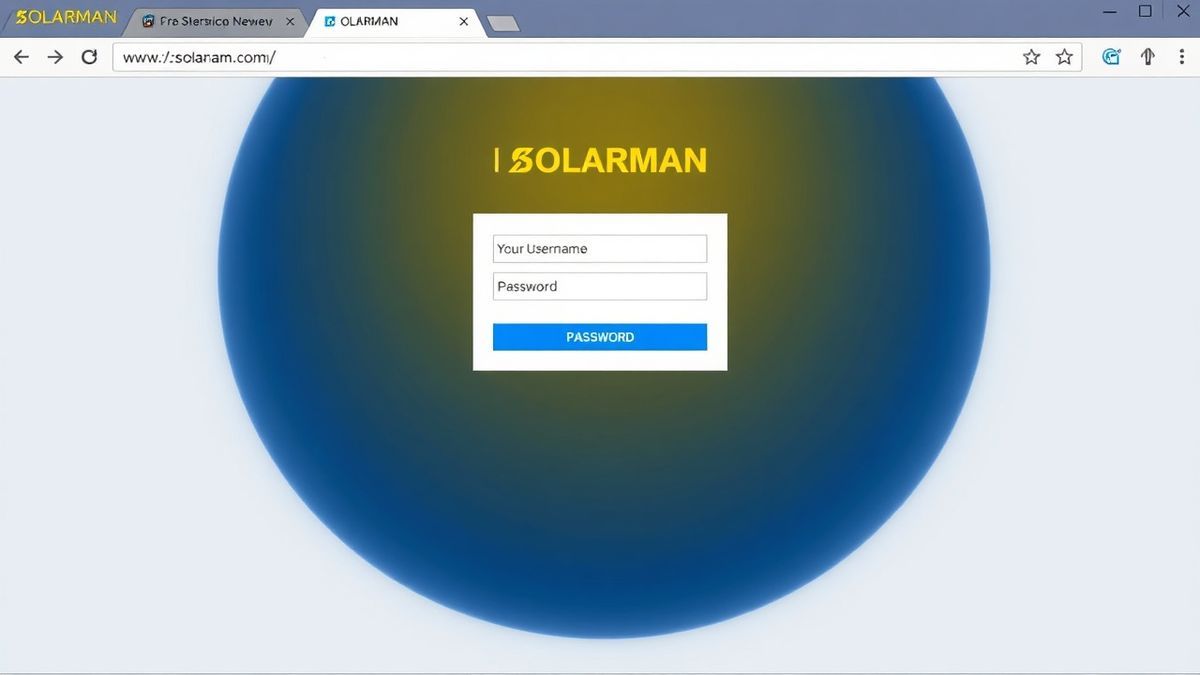
Default Username and Password
For most SOLARMAN WiFi sticks and data loggers, the factory default credentials are:
| Field | Default Value |
|---|---|
| Username | admin |
| Password | admin |
It is crucial to understand that these default credentials are common knowledge. If your device does not accept "admin" for the password, you may have previously changed it, or your specific model might use a different default like password or a unique serial number found on the device's sticker.
⚠️ Security Note: Leaving the default password in place poses a significant security risk. Anyone connected to your network could potentially access your solar monitoring system. Changing the password is a critical first step after a successful SOLARMAN Login.
What You Can Do After Login
Once you have successfully completed the SOLARMAN Login and entered the admin dashboard, you gain access to several critical configuration options. This is your control center for ensuring your solar system stays connected.
- Change WiFi Network (SSID): This is the most common task. You can configure the SOLARMAN device to connect to your home's WiFi network instead of its own.
- Modify WiFi Password: You can update the password for the WiFi network the device itself broadcasts.
- Update Data Logger Settings: Advanced users can adjust settings related to how the device communicates with the solar monitoring servers.
- View System Status: Check the device's connection strength, firmware version, and overall health to ensure optimal data transmission.

Troubleshooting SOLARMAN Login Not Working
Encountering issues while trying to access the SOLARMAN Login is common. This section addresses the most frequent problems and provides step-by-step solutions.
Cannot Access SOLARMAN Login (Page Not Loading)
Problem: You enter http://10.10.100.254 in your browser, but the page never loads, displaying a "This site can't be reached" error.
Solution:
- Verify Your Connection: The most common cause is a connection issue. If your SOLARMAN device is a WiFi stick, it creates its own network. Ensure your computer or phone is connected to that specific network (e.g., "SOLARMAN_XXXX") and not your home WiFi.
- Check the IP Address: Double-check the IP address for typos. It should be
10.10.100.254. Some users mistakenly type192.168.1.1, which is used by standard home routers. - Check Network Cables: If your SOLARMAN data logger is connected via Ethernet, ensure the cable is securely plugged into both the logger and your router.
No Response After Entering IP
Problem: You type the IP address, press Enter, and the browser just spins indefinitely without loading a login page.
Solution:
- Restart the Device: Power cycle your SOLARMAN device. Unplug it from its power source, wait for 30 seconds, and plug it back in. Wait a few minutes for it to fully boot up before trying again.
- Clear Browser Cache: A corrupted cache can sometimes cause loading issues. Clear your browser's cache and cookies, or try accessing the page in an "Incognito" or "Private" window.
- Use a Different Browser: If one browser fails, try a different one to rule out a browser-specific issue.
Login Failed After Entering Credentials
Problem: You enter admin for both username and password, but the page returns a "Login Failed" or "Authentication Error" message.
Solution:
- Check for Caps Lock: The password field is case-sensitive. Ensure Caps Lock is off and you are typing
adminin lowercase. - Reset the Device: If the default credentials aren't working, the password may have been changed. You can reset your SOLARMAN device to its factory settings. Look for a small pinhole labeled "Reset" on the device. With the device powered on, press and hold a paperclip in the hole for 10-15 seconds until the lights flash. This will reset the SOLARMAN Login credentials to
admin/admin. - Verify the Device Sticker: Some models have a unique default password printed on a sticker on the device itself. Check the back or bottom of the hardware for this information.

Frequently Asked Questions
How do I perform a SOLARMAN Login for the first time? Connect your computer or phone to the WiFi network broadcast by the SOLARMAN device. Then, open a browser, go to http://10.10.100.254, and enter the default username admin and password admin.
Why is the SOLARMAN Login page not loading? This is typically due to a connection issue. Ensure your device is connected to the correct WiFi network (the SOLARMAN device's network) and that you are using the correct IP address, 10.10.100.254. Restarting both your device and the SOLARMAN hardware can also resolve this.
What is the default password for SOLARMAN Login? The factory default password for nearly all SOLARMAN WiFi sticks and data loggers is admin. The username is also admin.
How can I change my WiFi settings after logging into SOLARMAN? After a successful SOLARMAN Login, navigate to the "Wireless" section in the admin menu. There, you can change the Network Name (SSID) and the WiFi Password. Remember to click "Save" after making your changes.
What should I do if I forgot my SOLARMAN admin password? If you have forgotten the password, you will need to perform a factory reset on the device. Locate the physical reset button on the SOLARMAN hardware and press and hold it for about 10 seconds using a paperclip. This will reset the credentials to admin/admin.
Is the IP address for SOLARMAN Login always 10.10.100.254? Yes, for the vast majority of consumer SOLARMAN devices, the default gateway used for administration is 10.10.100.254. This is a private IP address specifically assigned to the device for configuration purposes.
Why should I change the default password for SOLARMAN Login? Changing the default password is a critical security measure. The default admin/admin combination is publicly known. Leaving it unchanged allows anyone on your home network, or potentially malicious software, to gain administrative access to your solar monitoring device.
🔒 Security Reminder
After logging into your SOLARMAN router, always change the default password to protect your network from unauthorized access. Use a strong password with at least 12 characters including letters, numbers, and special symbols.