http://STC Router Login in the address bar. Use default credentials (usually admin/admin or admin/password) to access the admin panel. Change your password immediately for security. STC Router Login: The Complete Guide to Access & Change WiFi Password
What is STC Router Login?
The STC Router Login is the gateway to your router's administrative panel. This isn't a public website but a private interface accessed through a specific private IP address, which acts as your router's default gateway on your home network. By typing this address into a web browser, you can access the router admin area to manage all your network settings, from changing your WiFi password to setting up parental controls and securing your connection.
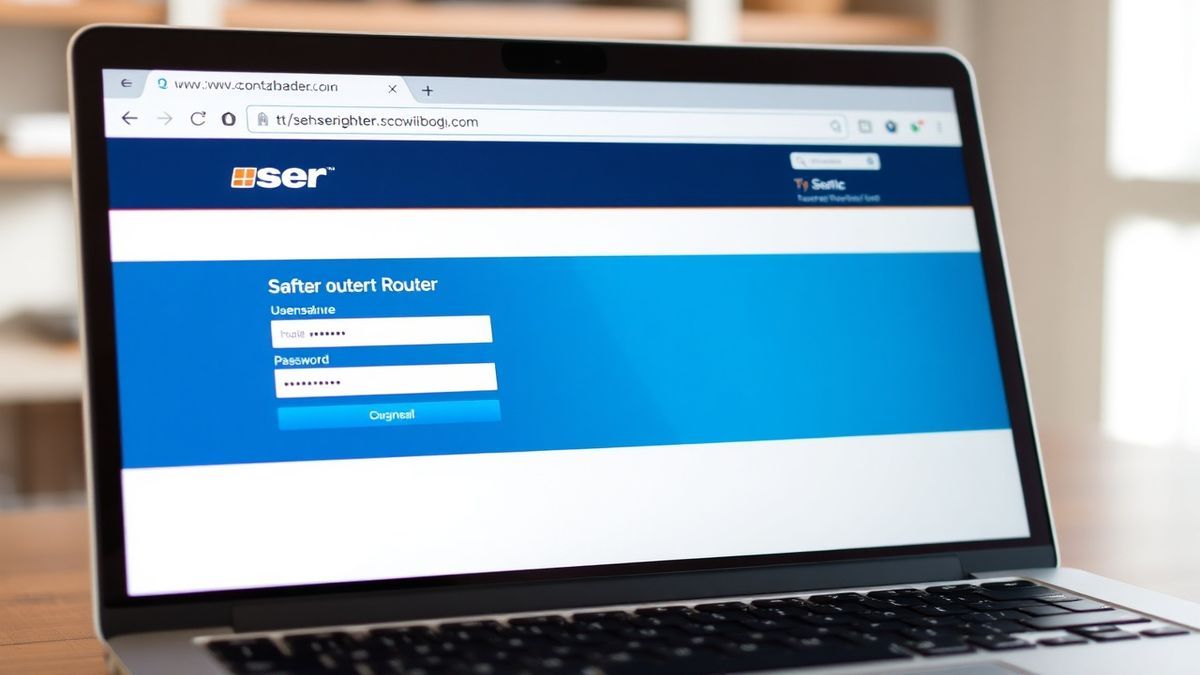
How to Login to STC Router Admin Panel
Gaining access to your router’s settings is a straightforward process. Follow these steps to perform an STC Router Login:
- Connect to Your Network: Ensure your computer or smartphone is connected to your STC router’s WiFi network or via an Ethernet cable.
- Open a Web Browser: Launch any browser, such as Chrome, Safari, or Firefox.
- Enter the Default Gateway IP: In the address bar, type the default IP address for your router. The most common STC router login IPs are
192.168.1.1or192.168.100.1. Press Enter. - Enter Your Credentials: A login page will appear. Enter the router’s username and password. If you haven't changed them, use the default credentials (usually found on a sticker on the router itself).
- Access the Dashboard: Click "Login" to enter the router admin panel, where you can view and modify all router settings.

Default Username and Password for STC Routers
STC provides various router models from different manufacturers like Huawei, D-Link, and ZTE. The default login credentials vary by model. It's crucial to check the sticker on the back or bottom of your router for the exact details.
Here is a table of common STC router login combinations:
| Modem Model | IP Address | Default Username | Default Password |
|---|---|---|---|
| Huawei HG658b | 192.168.1.1 | admin | admin |
| Huawei HG8245Q | 192.168.100.1 | telecomadmin | admintelecom |
| Dlink DSL-G2452GE | 192.168.1.1 | admin | Check router label |
| DZS-ZNID 2428 B1 | 192.168.100.1 | admin | Check router label |
| Alcatel-Lucent G-240W-B | 192.168.1.1 | admin | admin |
| E5577 MBB MyFi | 192.168.8.1 | admin | admin |
Security Note: Leaving your router on default credentials is a significant security risk. Anyone connected to your network could gain admin access. Change your router admin password immediately after your first successful login.
What You Can Do After a Successful Login
Once you've completed your STC router login, you have full control over your home network. The admin panel allows you to perform several critical tasks:
- Change WiFi Password (WPA Key): Enhance your network security by updating your WiFi password to a strong, unique one.
- Change WiFi Name (SSID): Personalize your network by changing the name that appears when devices search for WiFi.
- View Connected Devices: See a list of all devices currently connected to your network, allowing you to identify and block unauthorized users.
- Set Up a Guest Network: Create a separate WiFi network for visitors, keeping your primary network private and secure.
- Update Router Firmware: Ensure your router has the latest security patches and performance improvements.

Troubleshooting: Why is STC Router Login Not Working?
It's common to encounter issues when trying to access your router's admin panel. Here are the most frequent problems and how to solve them.
Cannot Access STC Router Login (Page Not Loading)
- Problem: You typed an IP address, but the browser shows an error or a "This site can't be reached" message.
- Solution:
- Verify the IP Address: Confirm you are using the correct default gateway. On a Windows PC, open Command Prompt and type
ipconfig. Look for "Default Gateway." On a Mac, go to System Settings > Network > Wi-Fi, and click "Details" next to your network. - Check Your Connection: Make sure you are connected to the STC router's network, not a neighbor's or your mobile data.
- Use HTTP, Not HTTPS: Some routers are configured to work only with
http://and nothttps://. Try typinghttp://192.168.1.1instead ofhttps://192.168.1.1.
- Verify the IP Address: Confirm you are using the correct default gateway. On a Windows PC, open Command Prompt and type
Login Failed / Incorrect Username or Password
- Problem: The login page loads, but you get an error after entering the username and password.
- Solution:
- Check the Router Label: The default credentials are often printed on a physical sticker on the router. Look for labels like "User Name," "Password," or "Wireless Password."
- Reset Your Password: If you or someone else changed the password and you can't remember it, you'll need to perform a factory reset.
- Factory Reset the Router: Locate the small, recessed "Reset" button on the back of your router. Use a paperclip to press and hold it for 10-15 seconds until the lights blink. This will restore all settings, including the login credentials, to their defaults. Note: This will also reset your WiFi name and password.
No Response After Entering the IP Address
- Problem: You press Enter, and the browser just keeps loading or eventually times out.
- Solution:
- Restart Your Devices: Unplug your router's power cable, wait 30 seconds, and plug it back in. Also, restart your computer or smartphone to clear any network cache.
- Disable VPN and Proxy: Active VPNs or proxy servers can interfere with accessing local IP addresses. Temporarily disable them and try again.
- Check for IP Conflicts: Ensure your device is set to obtain an IP address automatically (DHCP). A manually set static IP on your device might be outside the router's network range.

Frequently Asked Questions
1. What is the default STC router login IP address? The two most common default gateways for STC routers are 192.168.1.1 and 192.168.100.1. For some mobile routers like the E5577, the address is 192.168.8.1. Always check the sticker on your router to be sure.
2. Why is my STC router login not working even with the correct password? This usually means the password has been changed from the default. If you didn't change it, another user might have. If you cannot recall the password, you will need to perform a factory reset on your router to revert to the default credentials.
3. How do I change my WiFi password after an STC router login? After logging into your router's admin panel, look for a menu section labeled "Wireless," "WiFi," or "WLAN." Inside, you'll find the "SSID" (network name) and "WPA Key" or "Password" field. Enter your new password and click "Save" or "Apply."
4. Is it safe to use the default admin password for my STC router? No, it is not safe. Default passwords are publicly known and a major security vulnerability. If you haven't already, you should log in to your router and change the admin password immediately to prevent unauthorized access to your network settings.
5. What should I do if I forgot my STC router login username? For most consumer routers, the username is admin. If that doesn't work, the username might be listed on the router's label. If it's not, a factory reset will restore the original username as well.
6. Can I access my STC router login from my phone? Yes, absolutely. Connect your phone to your STC WiFi network, open a mobile browser like Chrome or Safari, and enter your router's IP address in the address bar. The login page will appear, and you can manage your settings just like on a computer.
🔒 Security Reminder
After logging into your STC router, always change the default password to protect your network from unauthorized access. Use a strong password with at least 12 characters including letters, numbers, and special symbols.