Virgin Media Router Login - Default Password & Admin Access Guide 2026
http://Virgin Media Router Login in the address bar. Use default credentials (usually admin/admin or admin/password) to access the admin panel. Change your password immediately for security. What is Virgin Media Router Login
The Virgin Media Router Login is the process of accessing your Hub’s admin panel using a private IP address, typically 192.168.0.1, which serves as the default gateway for your home network. This grants you access to a central dashboard where you can manage all router settings, including your WiFi password, network security, and connected devices. Essentially, it’s the control center for your home internet connection.
How to Login to Virgin Media Router
Gaining access to your Virgin Media Hub’s admin panel is a straightforward process. Follow these steps carefully to open the Virgin Media Router Login page.
- Connect to your network: Ensure your device (laptop, phone, or tablet) is connected to your Virgin Media WiFi network or directly to the Hub via an ethernet cable.
- Open a web browser: Launch any browser, such as Chrome, Safari, Firefox, or Edge.
- Enter the default gateway IP: In the address bar at the top of the browser, type
http://192.168.0.1and press Enter. If your Hub is in Modem Mode, you will need to usehttp://192.168.100.1instead. - Enter your password: You will be prompted to enter a password. This is the Settings password printed on the sticker located on the back or bottom of your Virgin Media Hub. It is not your WiFi password.
- Access the admin panel: Click the “Next” or “Login” button, and you will be taken to your Hub’s main settings page.
Default Username and Password
For Virgin Media Hubs (Hub 3, Hub 4, Hub 5, and Super Hub models), there is no traditional “username” field for initial login. Instead, the security is handled by a unique Settings password. This password is unique to your device and is located on the physical sticker on the Hub itself.
While this is a secure method, it’s important to understand:
- No default username: The login process only requires the unique settings password.
- Security risk: Keeping the factory settings password is a risk because anyone with physical access to your Hub can see it.
- Best practice: After logging in, navigate to the “Maintenance” or “Administration” section to change the settings password to something only you know. This is a crucial step for securing your router admin panel.
What You Can Do After Login
Once you’ve successfully completed the Virgin Media Router Login, you have full control over your home network. The admin panel provides a suite of powerful tools to optimize and secure your internet connection.
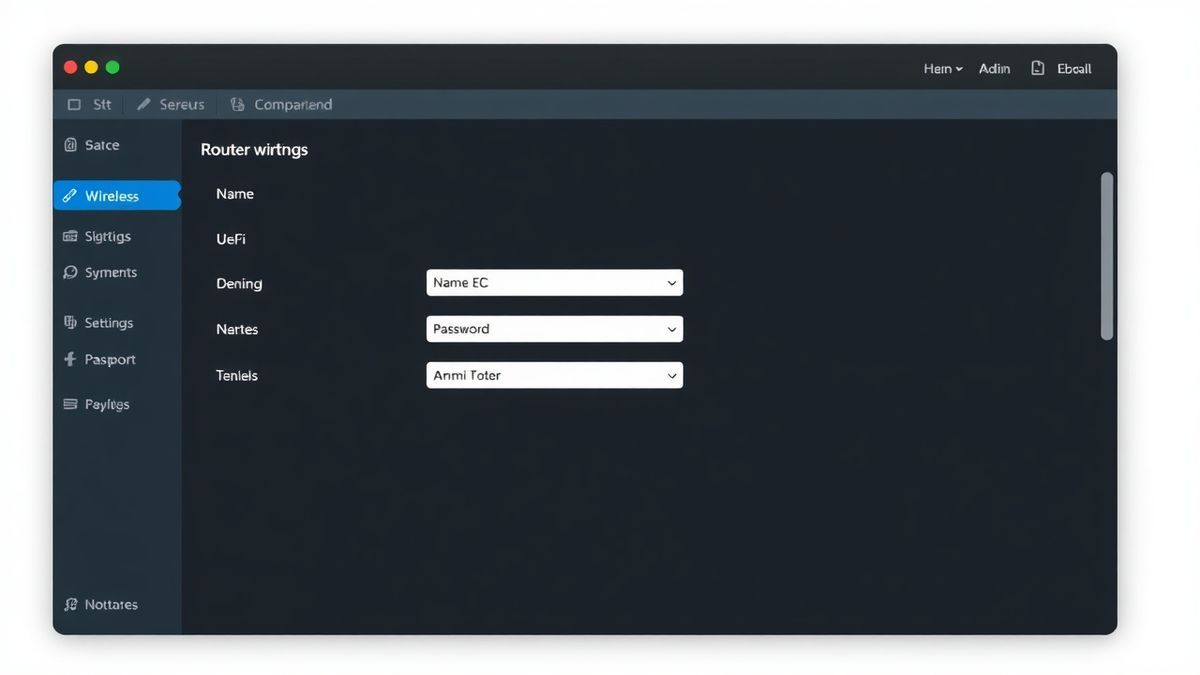
- Change WiFi Password and SSID: This is the most common task. You can rename your network (SSID) and update your WiFi password to something more secure or memorable. This is found under Advanced Settings > Wireless > Security.
- View Connected Devices: See a list of every device currently connected to your network. This helps you identify unauthorized users or simply see who’s online.
- Set Up a Guest Network: Create a separate, secure WiFi network for visitors. This keeps your main network and personal devices private.
- Update Router Security: You can change the admin password for the router itself, manage firewall settings, and configure other advanced security protocols.
Troubleshooting Virgin Media Router Login Not Working
It’s common to encounter issues when trying to access your router’s admin panel. Here are the most frequent problems and how to resolve them.
Cannot access Virgin Media Router Login
- Cause: The most common cause is using the wrong IP address. If your Hub is in Modem Mode, it uses a different IP.
- Solution: Try accessing the admin panel using
http://192.168.100.1. If that doesn’t work, verify your Hub’s IP address by checking your computer’s network connection details. The “Default Gateway” listed there is the correct IP to use.
Page not loading or “This site can’t be reached”
- Cause: This often indicates a poor connection to the router, a browser cache issue, or an incorrect IP entry.
- Solution:
- Ensure you are connected to the Virgin Media network (WiFi or ethernet).
- Try a different web browser or open a “Private” or “Incognito” window to bypass cached data.
- Double-check that you typed
http://192.168.0.1and nothttps://or a search engine query. You are navigating to a local IP address, not a website.
No response after entering the IP address
- Cause: The router may be unresponsive, or your device might have a network configuration conflict.
- Solution: Perform a simple power cycle. Unplug your Virgin Media Hub from the power outlet, wait for 30 seconds, and plug it back in. Once the lights return to normal, wait a few minutes and try to log in again.
Login failed
- Cause: You are entering the wrong settings password. This is a common confusion between the WiFi password and the router admin password.
- Solution: Locate the sticker on your Virgin Media Hub. Enter the “Settings password” exactly as it appears, paying attention to case sensitivity. If you have previously changed it and forgotten it, you will need to perform a factory reset on the Hub by holding a pin in the reset button for 30 seconds.
Frequently Asked Questions
How to login to Virgin Media Router Login?
To log in, connect to your network, open a browser, and enter 192.168.0.1 in the address bar. Then, enter the “Settings password” found on the sticker on your Hub. This will grant you access to the Virgin Media Router Login portal and the admin panel.
Why is Virgin Media Router Login not working?
The Virgin Media Router Login might fail for several reasons: using the wrong IP address (especially if in Modem Mode, try 192.168.100.1), a poor connection, a browser cache issue, or entering the incorrect “Settings password” from the Hub’s sticker.
What is the default password for Virgin Media Router Login?
There is no universal default password. Your default password is the unique “Settings password” printed on the physical label on your Virgin Media Hub. You must use this password to log in for the first time.
How do I change my Virgin Media WiFi password?
First, complete the Virgin Media Router Login. Once in the admin panel, navigate to Advanced Settings, then Wireless, and finally Security. Here you can change the WiFi password (security key) for both 2.4GHz and 5GHz bands and then click “Apply changes”.
Can I access the router login page from my phone?
Yes, you can access the Virgin Media Router Login page from any device with a web browser that is connected to your network. Simply open a browser on your phone and enter http://192.168.0.1 in the address bar, then enter the settings password.
What should I do if I forgot my router admin password?
If you have changed your admin “Settings password” and forgotten it, you must perform a factory reset on your Virgin Media Hub. Locate the small reset hole on the back, use a paperclip to press and hold the button for 30 seconds. This will restore the Hub to its factory settings, including the default “Settings password” on the sticker.
Is it safe to change my router settings?
Yes, it is safe and recommended. After performing the Virgin Media Router Login, changing your WiFi password regularly and updating the admin panel password enhances your home network’s security against unauthorized access.
What is the IP address for the Virgin Media Hub in Modem Mode?
If your Virgin Media Hub is in Modem Mode, you cannot access it via 192.168.0.1. Instead, you must use the alternative private IP address 192.168.100.1 to reach the router login page.
🔒 Security Reminder
After logging into your Virgin Media router, always change the default password to protect your network from unauthorized access. Use a strong password with at least 12 characters including letters, numbers, and special symbols.