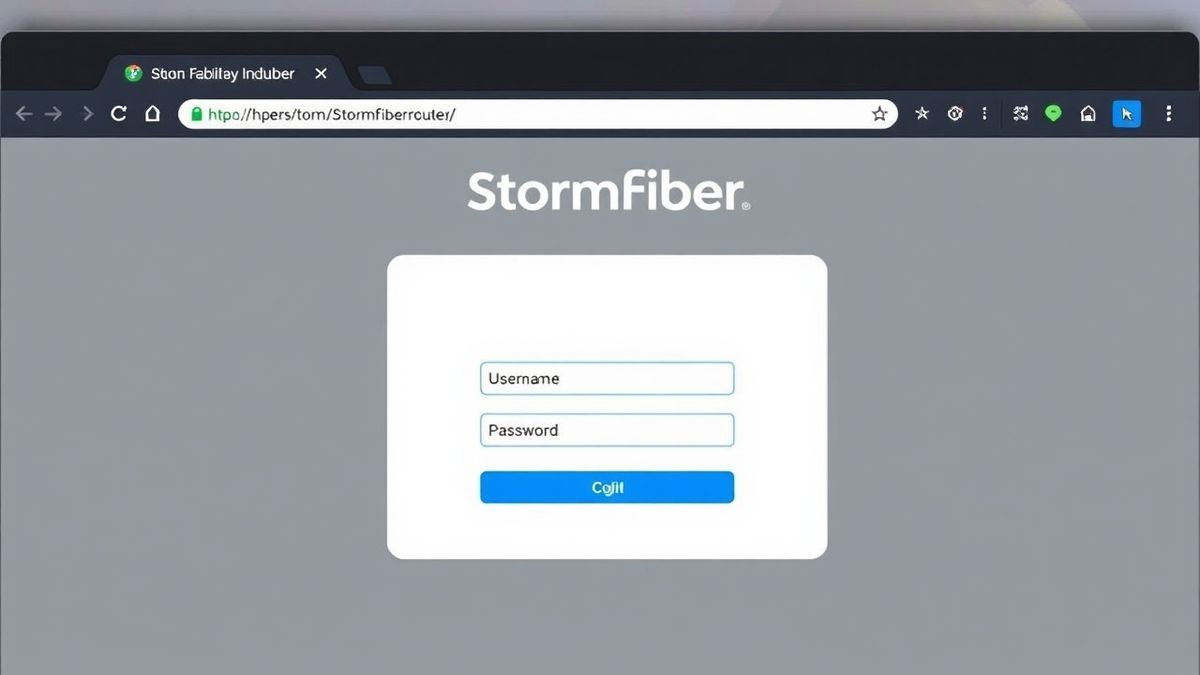
http://StormFiber Router Login in the address bar. Use default credentials (usually admin/admin or admin/password) to access the admin panel. Change your password immediately for security. StormFiber Router Login: The Complete Guide to Access & Manage Your Admin Panel
What is StormFiber Router Login?
The StormFiber Router Login is the gateway to your router's administrative panel, accessible through a private IP address like 192.168.1.1 or 192.168.18.1. This IP, known as your default gateway, acts as the portal to configure, secure, and troubleshoot your entire home network. By accessing this admin panel, you gain full control over critical router settings, from changing your WiFi password to managing connected devices and optimizing security.
How to Login to StormFiber Router Login
Accessing your router's admin panel is a straightforward process. Follow these steps to get started:
- Connect to Your Network: Ensure your computer or smartphone is connected to your StormFiber WiFi network or directly to the router via an Ethernet cable.
- Open a Web Browser: Launch any web browser (like Chrome, Firefox, or Safari) on your connected device.
- Enter the Private IP Address: In the browser's address bar, type your router's default gateway IP. For most StormFiber routers, this is
http://192.168.1.1orhttp://192.168.18.1. Press Enter. - Enter Login Credentials: A login page will appear. Enter the router's username and password. If you haven't changed them, use the default credentials found on the sticker on the back or bottom of your router.
- Access the Admin Panel: After clicking "Login," you will be directed to the router's main dashboard, where you can view and modify all settings.
Default Username and Password for StormFiber Routers
If this is your first time logging in or you haven't changed the credentials, your router will have a default username and password. This information is critical for accessing the admin panel. StormFiber uses different router models, so the details may vary.
| Router Model | Default IP Address | Default Username | Default Password |
|---|---|---|---|
| Fiberhome HG6544C | http://192.168.1.1 | user | user1234 |
| Huawei EG8143A5 | http://192.168.18.1 | Epuser | userEp |
Important Security Note: Leaving your router with default login credentials is a significant security risk. Anyone connected to your network could potentially change your settings or monitor your activity. It is highly recommended to change the default admin password immediately after your first login.
What You Can Do After Logging In
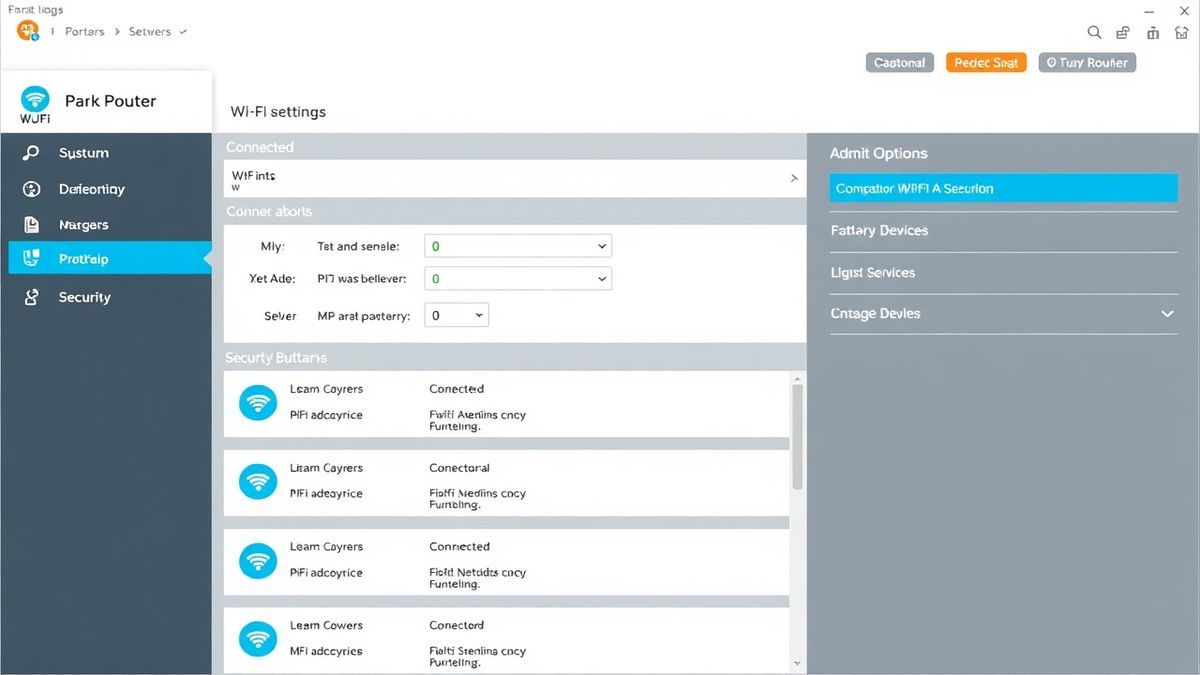
Once you're in the StormFiber Router Login admin panel, you have full authority over your home network. Here are some of the most common and useful tasks you can perform:
- Change Your WiFi Password and Network Name (SSID): This is the most common task. You can update your WiFi password to a stronger one and rename your network to something easily identifiable.
- View Connected Devices: See a list of all devices currently connected to your WiFi, which is useful for identifying unauthorized users.
- Set Up Parental Controls: Limit internet access for specific devices or at certain times to create a safer online environment for children.
- Update Router Firmware: Keeping your router's software up-to-date is crucial for security and performance. Most admin panels have a section for checking and installing firmware updates.
- Configure Guest Networks: Create a separate WiFi network for visitors, keeping your primary network secure and your main password private.
- Adjust Security Settings: Switch between security protocols (like WPA2 or WPA3) to ensure your connection is as secure as possible.
Troubleshooting StormFiber Router Login Not Working
It's frustrating when you can't access your router's admin panel. This section is designed to help you diagnose and fix the most common login issues, getting you back in control of your network.
Cannot Access StormFiber Router Login (Page Not Loading)
Why this happens: The most common cause is using the wrong IP address. Your computer may not be receiving the correct default gateway information from the router.
How to fix it:
- Find Your Correct Default Gateway:
- On Windows: Open Command Prompt, type
ipconfig, and press Enter. Look for your active network connection (WiFi or Ethernet). The number next to "Default Gateway" is the correct IP address for your router. - On macOS: Go to System Settings > Network. Select your active connection and click "Details." Find the "Router" address—that's your gateway.
- On Windows: Open Command Prompt, type
- Check Your Connection: Ensure you are physically connected to the StormFiber network, either via WiFi or Ethernet cable. You cannot access the login page from a different network.
No Response After Entering the IP Address
Why this happens: This could indicate a problem with the router itself, a browser cache issue, or a conflict with a VPN/proxy.
How to fix it:
- Clear Your Browser Cache: Sometimes, cached data can cause conflicts. Clear your browser's cache and cookies, or try accessing the login page in an "Incognito" or "Private" browsing window.
- Disable VPNs and Proxies: VPNs and proxy servers can redirect your traffic, preventing you from reaching your local router. Temporarily disable them and try again.
- Reboot Your Router: A simple restart can resolve many temporary glitches. Unplug your router's power cable, wait 30 seconds, and plug it back in. Wait for the router to fully restart (all lights are stable) before trying to log in again.
Login Failed: Incorrect Username or Password
Why this happens: You are either typing the credentials incorrectly, or the default password has been changed in the past.
How to fix it:
- Double-Check the Defaults: Look at the sticker on your router again. Make sure you are using the correct username and password for your specific model, like the
FiberhomeorHuaweiexamples above. - Check for Typos: Usernames and passwords are case-sensitive. Ensure that Caps Lock is off and that you are typing them exactly as they appear.
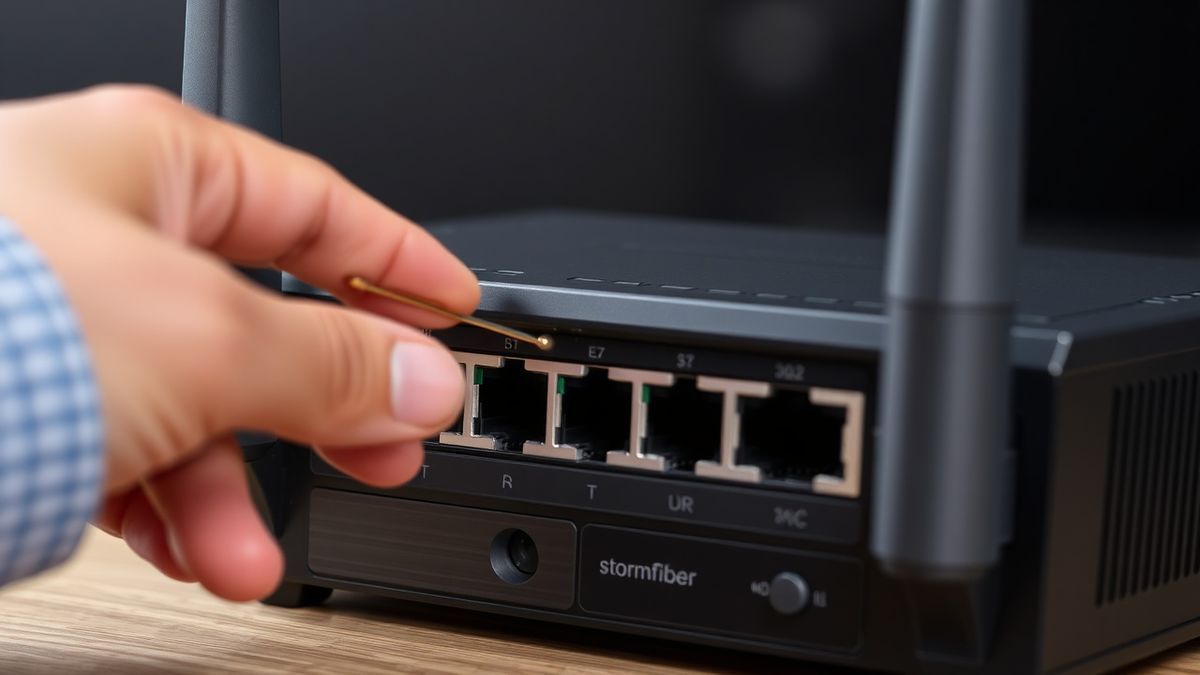
- Perform a Factory Reset: If you've changed the password and forgotten it, the only solution is to reset the router to its factory settings. Locate the small, recessed "Reset" button on the back of the router. Use a paperclip to press and hold it for 10-15 seconds until the router lights flash. Warning: This will erase all your custom settings, including your WiFi name and password. You will then need to log in using the default credentials and set up your network again.
Frequently Asked Questions
How do I login to my StormFiber Router Login?
To access your StormFiber Router Login, connect to your network, open a browser, and enter your router's default IP address (192.168.1.1 or 192.168.18.1). Then, enter the username and password from the sticker on your router.
Why is my StormFiber Router Login not working?
A non-working login is often due to using the wrong IP address, a faulty connection, or incorrect login credentials. Refer to the troubleshooting section above for step-by-step solutions, such as finding the correct default gateway or performing a factory reset.
What is the default password for a StormFiber Router Login?
The default password varies by router model. For a Fiberhome router, it's often user1234 with the username user. For a Huawei model, it's often userEp with the username Epuser. Always check the sticker on your physical router for the most accurate details.
How can I change my StormFiber WiFi password?
First, log in to your router's admin panel using the StormFiber Router Login process. Once inside, look for a menu labeled "Wireless," "WLAN," or "WiFi." There, you will find the fields to change the SSID (network name) and the password (often labeled "Passphrase" or "WPA PreSharedKey").
What should I do if I forgot my router's admin password?
If you forgot your custom admin password, you cannot recover it. You must perform a factory reset on your router by holding the reset button for 10-15 seconds. This will restore the default username and password, allowing you to log in again.
How do I find my router's IP address?
Your router's IP address is the default gateway. On Windows, open Command Prompt and type ipconfig. On macOS, go to System Settings > Network and look for the "Router" address. This is the IP you use for the StormFiber Router Login page.
Is it safe to use the default router login?
No, using the default username and password is a major security vulnerability. It's one of the first things hackers will try. You should change the default admin password to a strong, unique password immediately after your first login to secure your network.
What can I do after logging into my router?
After logging in, you have complete control over your home network. You can change your WiFi password and name, see who is connected, set up parental controls, update the router's firmware, and configure guest networks to enhance security and performance.
🔒 Security Reminder
After logging into your StormFiber router, always change the default password to protect your network from unauthorized access. Use a strong password with at least 12 characters including letters, numbers, and special symbols.