http://T-Mobile Hotspot Login in the address bar. Use default credentials (usually admin/admin or admin/password) to access the admin panel. Change your password immediately for security. T-Mobile Hotspot Login Tool | Access & Manage Your Network
What is T-Mobile Hotspot Login?
Your T-Mobile hotspot uses a private IP address, typically 192.168.0.1 or the URL mobile.hotspot, as its default gateway. This is the address you type into a web browser to access the router’s admin panel, also known as the T-Mobile Hotspot Login page. This interface gives you full control to manage your Wi-Fi settings, network name (SSID), password, and connected devices for a seamless internet experience.
How to Login to Your T-Mobile Hotspot
Accessing your T-Mobile hotspot admin panel is a straightforward process. Follow these steps to log in:
- Connect to the Hotspot: Ensure your computer or mobile device is connected to your T-Mobile hotspot’s Wi-Fi network.
- Open a Web Browser: Launch any browser, such as Chrome, Safari, or Firefox.
- Enter the Address: In the address bar, type either
http://mobile.hotspotorhttp://192.168.0.1and press Enter. - Enter Login Credentials: You will be prompted for a password. The default password varies by device (see the next section for details). Enter it and click "Login" or "Sign In".
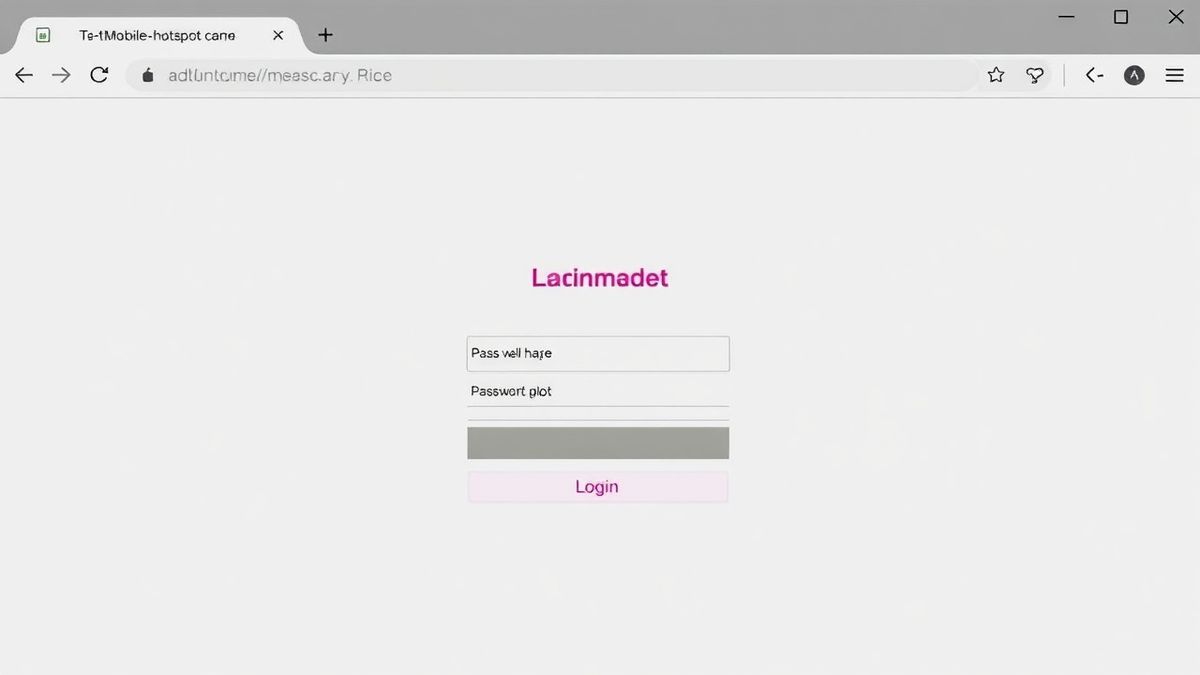
Once logged in, you will be in the WebUI Manager, where you can view and adjust all your network settings.
Default Username and Password for T-Mobile Hotspots
The default login credentials are not always the same. T-Mobile uses different defaults for different hotspot models. Here is a breakdown to help you find the right one:
- T-Mobile 4G/5G Hotspot (e.g., Inseego MiFi): The default password is often the same as the Wi-Fi password printed on the device's label or on the "Keep Me" card. For some models, the default login password is admin.
- T9/T10 Mobile Hotspot (Franklin): The default password is admin.
- Coolpad Surf: The default password is admin.
- Older T-Mobile Hotspots: For many older models, the default password is Admin followed by the last 4 digits of the device's IMEI number (e.g., Admin1234). You can find the IMEI printed on a sticker under the device's battery.
Important Security Tip: It is highly recommended to change the default admin password after your first login to prevent unauthorized access to your network settings.
What You Can Do After You Log In
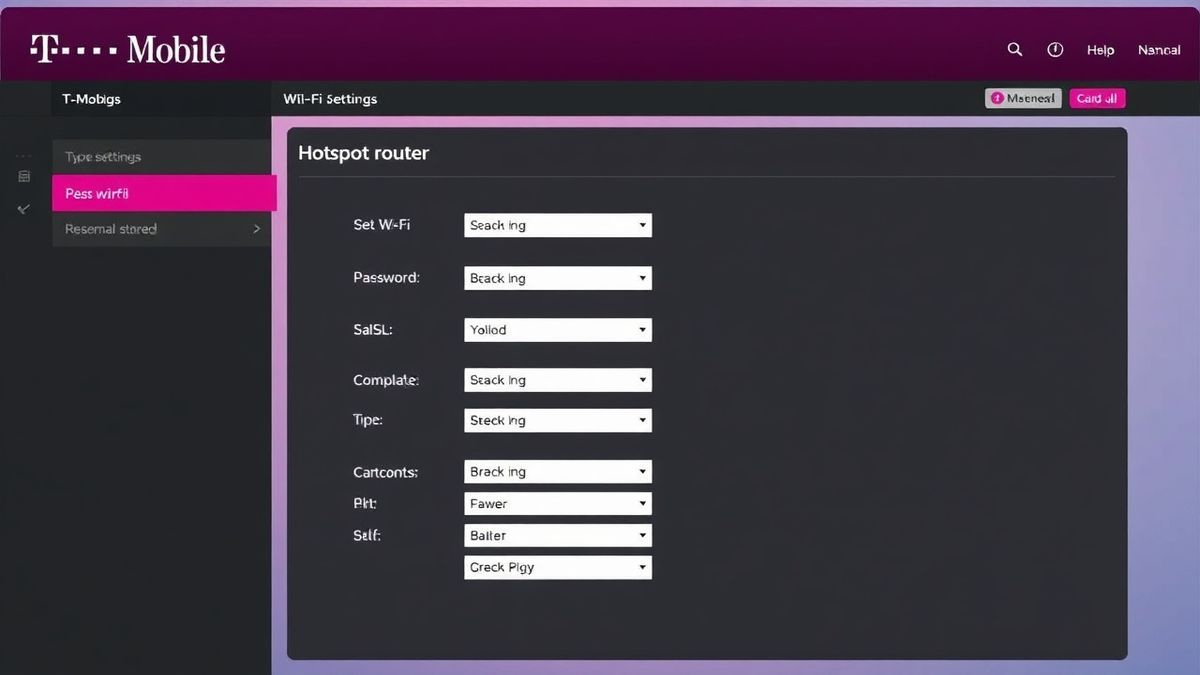
The T-Mobile hotspot admin panel is your central hub for managing your home or mobile internet. After a successful login, you can:
- Change Your Wi-Fi Network Name (SSID): Customize your network name to something you can easily identify.
- Change Your Wi-Fi Password: Improve security by setting a strong, unique password for your Wi-Fi network.
- Check Connected Devices: View a list of all devices currently using your hotspot to monitor for unauthorized access.
- Monitor Data Usage: Keep track of how much data you've used to avoid overage charges.
- Switch Between 2.4GHz and 5GHz Bands: Optimize your connection for range or speed by selecting the appropriate frequency.
- Adjust Advanced Router Settings: For experienced users, you can modify settings like IP address allocation, DNS, and more.
Troubleshooting: T-Mobile Hotspot Login Not Working
It's frustrating when you can't access your admin panel. Here are solutions to the most common login problems.
Cannot Access T-Mobile Hotspot Login Page
Possible Cause: You are not connected to the hotspot's Wi-Fi network, or you are using the wrong IP address.
Solution:
- Verify Connection: Double-check that your device is connected to the correct T-Mobile hotspot Wi-Fi. You can do this by looking at your device's Wi-Fi settings.
- Use the Correct URL: Try both
http://mobile.hotspotandhttp://192.168.0.1in your browser. If one doesn't work, the other usually will. - Find the Default Gateway: If neither works, you can find the correct IP address manually.
- On Windows: Open Command Prompt, type
ipconfig, and press Enter. Look for the "Default Gateway" under your Wi-Fi adapter. - On macOS: Go to System Settings > Network, select your Wi-Fi connection, and click "Details". The router's IP address will be listed.
- On Windows: Open Command Prompt, type
Page Not Loading / "This Site Can't Be Reached"
Possible Cause: A browser cache issue, a firewall blocking the connection, or the device is in a low-power state.
Solution:
- Clear Browser Cache: Clear your browser's cache and cookies, or try accessing the login page using an incognito/private browsing window.
- Temporarily Disable Firewall: If you are using a third-party firewall or security suite, temporarily disable it to see if it is blocking access to the local IP address.
- Restart the Hotspot: Unplug the battery or power cord from your hotspot, wait 30 seconds, and then power it back on. This often resolves temporary software glitches.
Login Failed / Wrong Password
Possible Cause: You are using the incorrect default password, or the password was previously changed.
Solution:
- Check Your Device Label: Look on the back of your hotspot, under the battery, or on the "Keep Me" card for the default admin password. It is often labeled as "Admin Password" or "WebUI Password."
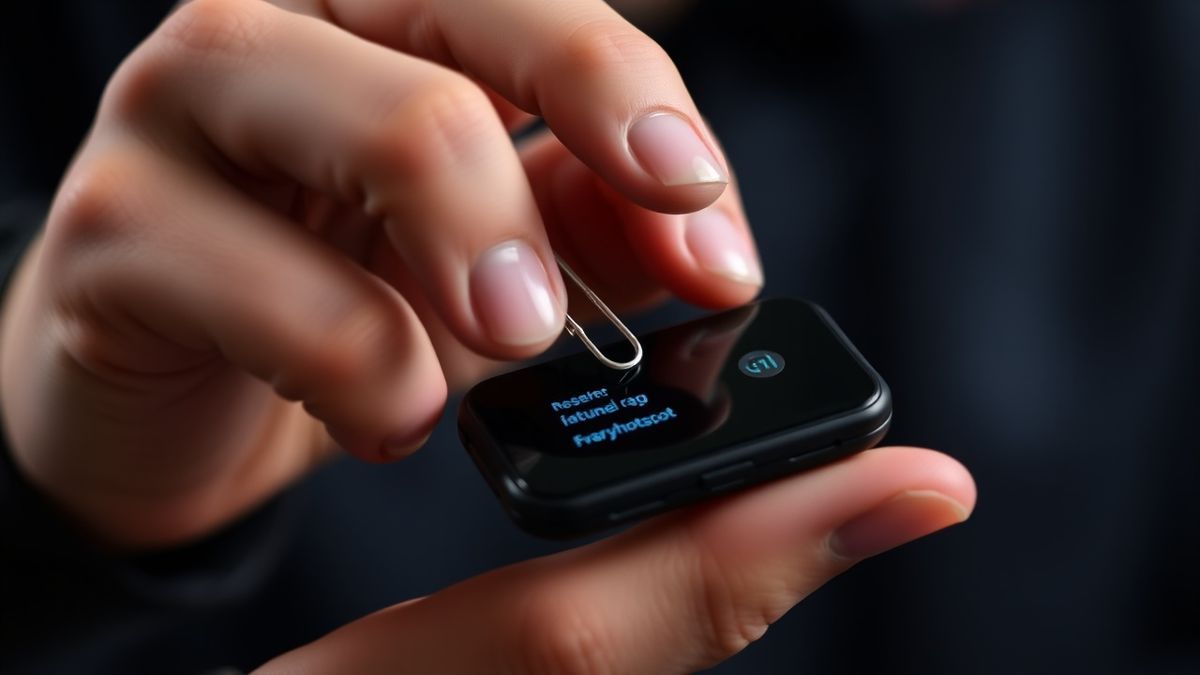
- Reset to Factory Settings: If you or someone else changed the password and you can't remember it, you will need to reset the device to its factory defaults. Look for a small pinhole on the device (usually labeled "Reset"). Use a paperclip to press and hold the button inside for 10-15 seconds. The device will reboot, and all settings, including the login password, will revert to the defaults listed on the device label.
Frequently Asked Questions
How do I perform a T-Mobile Hotspot Login? To log in, connect to your hotspot’s Wi-Fi, open a browser, and go to http://mobile.hotspot or http://192.168.0.1. Then, enter your admin password. The default password can be found on the device label.
Why is my T-Mobile Hotspot Login page not loading? This is often due to not being connected to the hotspot, using the wrong IP address, or a browser cache issue. Ensure you are connected to the Wi-Fi network and try using http://192.168.0.1 instead of mobile.hotspot, or vice versa.
What is the default password for a T-Mobile Hotspot Login? There is no single default password. Common defaults include admin, or Admin followed by the last 4 digits of the device's IMEI number. Check the sticker on your device for the exact credentials.
Can I change my Wi-Fi password through the T-Mobile Hotspot Login? Yes. Once logged into the admin panel, navigate to the Wi-Fi or Settings section. You will find fields to change the Wi-Fi Network Name (SSID) and the Wi-Fi password.
How can I see who is connected to my T-Mobile hotspot? After logging in to the admin panel, look for a section called "Connected Devices," "Client List," or "DHCP Clients." This will show you all devices currently connected to your network.
What should I do if I forgot my T-Mobile hotspot admin password? If you cannot log in because you forgot the admin password, you will need to perform a factory reset on your hotspot device. Find the reset pinhole and hold it down for about 10-15 seconds until the device restarts.
Can I access the T-Mobile Hotspot Login from my phone? Yes, absolutely. You can access the login page from any device with a web browser, including smartphones and tablets, as long as they are connected to the hotspot's Wi-Fi network.
🔒 Security Reminder
After logging into your T-Mobile Hotspot router, always change the default password to protect your network from unauthorized access. Use a strong password with at least 12 characters including letters, numbers, and special symbols.